
Thoughts behind by note taking system
How it came to Obsidian
Before the Obsidian Age
I've had many different places where I jotted down the thoughts I had – first beginning with notebooks, sketchpads, big A3 papers I always had on my desk and moving on to apps like the standard note app on my phone. Then a few other apps on my PC before finally arriving at my current setup – an Obsidian Vault that syncs between my PC and phone.
When thinking back on this journey, the biggest reason the Obsidian Vault works is because it's digital and syncs between my phone and PC. Through that, it can function as the central hub for my thoughts in a way where every other note taking place paled in comparison. Other benefits include:
-
Since its digital, written passages can easily be rewritten, or reorganized into different notes. I can easily add in paragraphs or bullet points inbetween something if I thought of them later
(which is difficult to do if done on paper with a kind of "You have to write it right the first time" mentality) . -
Markdown offers a good amount of formatting with bullet lists and tables
(with bullet lists inherently being my preferred way of noting down a lot of my thoughts) -
The aspect of customization made available through custom css styling and community plugins allow me to tailor the app to my specific note-taking style
(See the "Personal Tweaks" section!) . - Files are stored as text files in folders – literally the simplest and most accessible way possible
My Setup
Pancake-flavoured Obsidian
Syncing Notes with Syncthing
Since I'm a cheapskate, I skipped out on Obsidian Sync as that costs money and instead found Syncthing – an alternative where you put in a bit of effort in the beginning and then have a background process running on your computer where select folders on your file system get synced with other devices like phone via a corresponding Syncthing app that also runs in the background. Now I just needed to setup autoboot for my PC and phone and voila – set and forget!
Customizations
The Theme – Things by @colineckert
One day I decided to mix things up by installing a new theme for a fresh coat of paint. "Things" sprung to my eye, and after a while of using it, I found it really innovative and liked some specific things about it so much that I implemented them into the theme of my website. Namely, these three things are:
-
Instead of headings that are mostly size-based
(which is really hard to distinguish) they are now also distinguished via colors! Higher headings have a brighter color while lower headings have a more subdued color. - Emboldening something now makes it bright pink, highlighting it more. Now bold text really stands out and can also be used to make a "inline heading" of sorts!
-
Items in bullet lists now have a variety of new states
(such as half-finished, delayed, heart, star etc.)
Community Plugins
Install via Options > Community plugins > Community plugins > Browse
Iconize
by Florian Woelki
The Iconize plugin makes you able to give every note an icon that's visible in the tree view and next to the title in the actual note itself. I installed it as an attempt to make it easier to sight-read my ever growing note tree, and think that even besides whether or not it really helps it adds flair to the app.
I used css to tweak the styling of icons in the note's title.
List Callouts
by mgmeyers
A specific feature for lists. When a list begins with a configurable string of text, it transforms it into an icon and marks the entire bullet point with a color. The cool thing is that each string, icon and color is configurable, and that you can add unlimited amounts of them.
Another Sticky Headings
by Zhou Hua
The current heading sticks to the top of the screen for easy orientation in large notes. I also applied custom styling so each heading has the appropiate color.
Personal Tweaks
Implemented via custom css
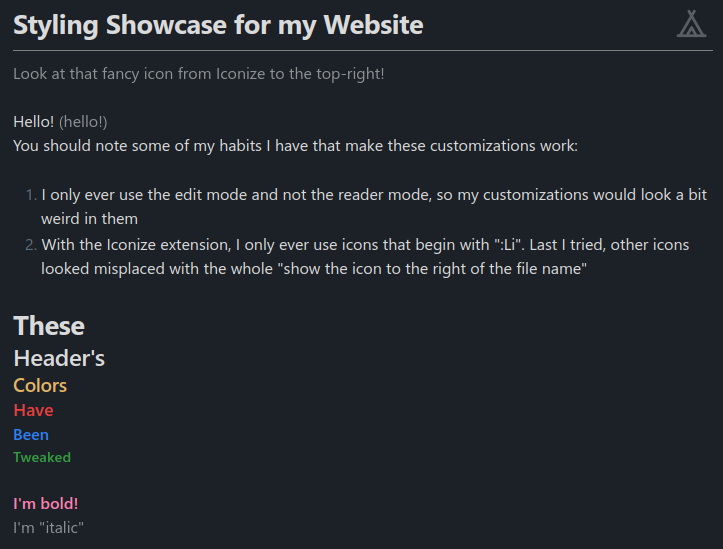
- The order of heading colors from the Things theme has been shuffled around to match the colors of the rainbow
-
The syntax for making stuff italic now instead
"demarks" stuff - The inline title of the file has an underline now
-
You'll have to enable the inline tile under
Options > Appearance > Interface > Show inline titleif you want that
Step-by-Step Installation Guide
From vanilla to pancake-flavoured Obsidian
-
Install the plugin "Iconize" by FlorianWoelki under
Options > Community plugins > Community plugins > Browseand enable it. - Open the settings of Iconize by clicking on it's cogwheel in the "Installed plugins" list.
- Turn on the setting "Toggle icon in title" and set it to "Next to title".
- Install my css snippet.
-
Open the snippets folder of your Obsidian vault by clicking on the folder icon under
Options > Appearance > CSS snippets. - Create a css file and paste the code below into it.
-
Enable your new css file in the app under
Options > Appearance > CSS snippets
CSS Snippet
*snip* *snip* *snip*...
/* Shuffles the colors of headings around like this website's headings */
/* Might look weird when using a theme other than "Things" */
body {
	--inline-title-color: var(--text-normal); /* h1 */
	--h2-color: #e83e3e;
	--h3-color: #e5b567;
	--h4-color: #43cc53; /* #33a040 */
	--h5-color: #4a9bf2;
	--h6-color: #b75fff;
}

/* Removes top padding for every heading because I just want to space stuff apart using spaces + it's annoying when the whole text shifts around when I edit a heading */
.cm-s-obsidian .cm-line.HyperMD-header {
	/* Absolutely NO PADDING TOP *very illegal* */
	padding-top: 0;
}

/* Adds a fancy seperation line between file contents & file name */
/* Requires "Options > Appearance > Interface > Show inline title" to be enabled */
.inline-title {
	margin-bottom: 10px;
	padding-bottom: 10px;
	border-bottom: 1px solid gray;
	overflow-wrap: break-word;
}

/* Makes *emphasis / italics* grey text out instead of slanting it */
.cm-em, em {
	opacity: 0.6;
	color: var(--color-base-100) !important;
	font-style: normal;
}

div.markdown-embed[src] :is(h1,h2,h3,h4,h5,h6) {
	margin-top: 0;
	font-size: 16px;
	color: var(--color-accent);
}

/* The next few rules are for placing the Iconize icon of a text file next to the title, faded into the background */
/* Note that this works fine with Icons prefixed with a "Li", but when using other icon types like emojis, the padding was all over the place, so be warned! */
div.iconize-inline-title-wrapper {
	display: block !important;
	position: relative;
	width: unset;
}

div.iconize-inline-title-wrapper > div.iconize-title-icon {
	position: absolute;
	/*scale: 1.6;*/
	opacity: 0.33;
	right: 6px;
	bottom: 27px;
	min-width: 32.641px;
	height: 32.641px;
	font-size: 27.2px;
	margin-right: 0;

	pointer-events: none;
	text-align: right;
}

body.is-mobile div.iconize-inline-title-wrapper > div.iconize-title-icon {
	bottom: 37px;
}

/* div.iconize-inline-title-wrapper > div.iconize.title-icon:only-child */
/*.markdown-source-view div.iconize-inline-title-wrapper > div.iconize-title-icon {
	bottom: 37px;
	z-index: -1;
}*/

div.iconize-inline-title-wrapper > div.iconize-title-icon > svg {
	scale: calc(32.641 / 27.2 );
	position: relative;
	left: -2px;
	top: -1px;
	transform: translateY(9%);
}
Other tips & tricks
- If the phone app is lagging for you, try closing all tabs. I had 68 open because I didnt care for the tab system and they just slowly accumulated, making the app quite laggy.
- One thing that really helped to cement Obsidian as my central note-taking place is the fact that I set it up to sync between my PC & Phone.
-
I didn't use Obsidian Sync for that
(partly because it costs money and partly because I also wanted to sync other files and folders between my phone & PC) – I instead used Syncthing, a free, but somewhat complicated-to-set-up way to do it instead! -
While Syncthing has some caveats
(only works when two devices are connected to the same network , it works well in my use case, especially considering that it auto-starts on both my PC & Phone and doesn't drain as much battery from my phone as I feared.(or also to the internet, apparently?) at the same time, meaning you'd want a central server that's always online if you have more than two devices)